Settings
Settings holds your details, colours, sounds, username and password, Nifty Plus and its features, API tokens, backups, tasks, webhooks and AI. This page explains how to find a setting and what each one does.
On this page
To open Settings, choose the gear at the top, just left of Search, or choose Nifty → Settings. On a phone, open the menu and choose Settings. In the Mac app, you can also press ⌘,.
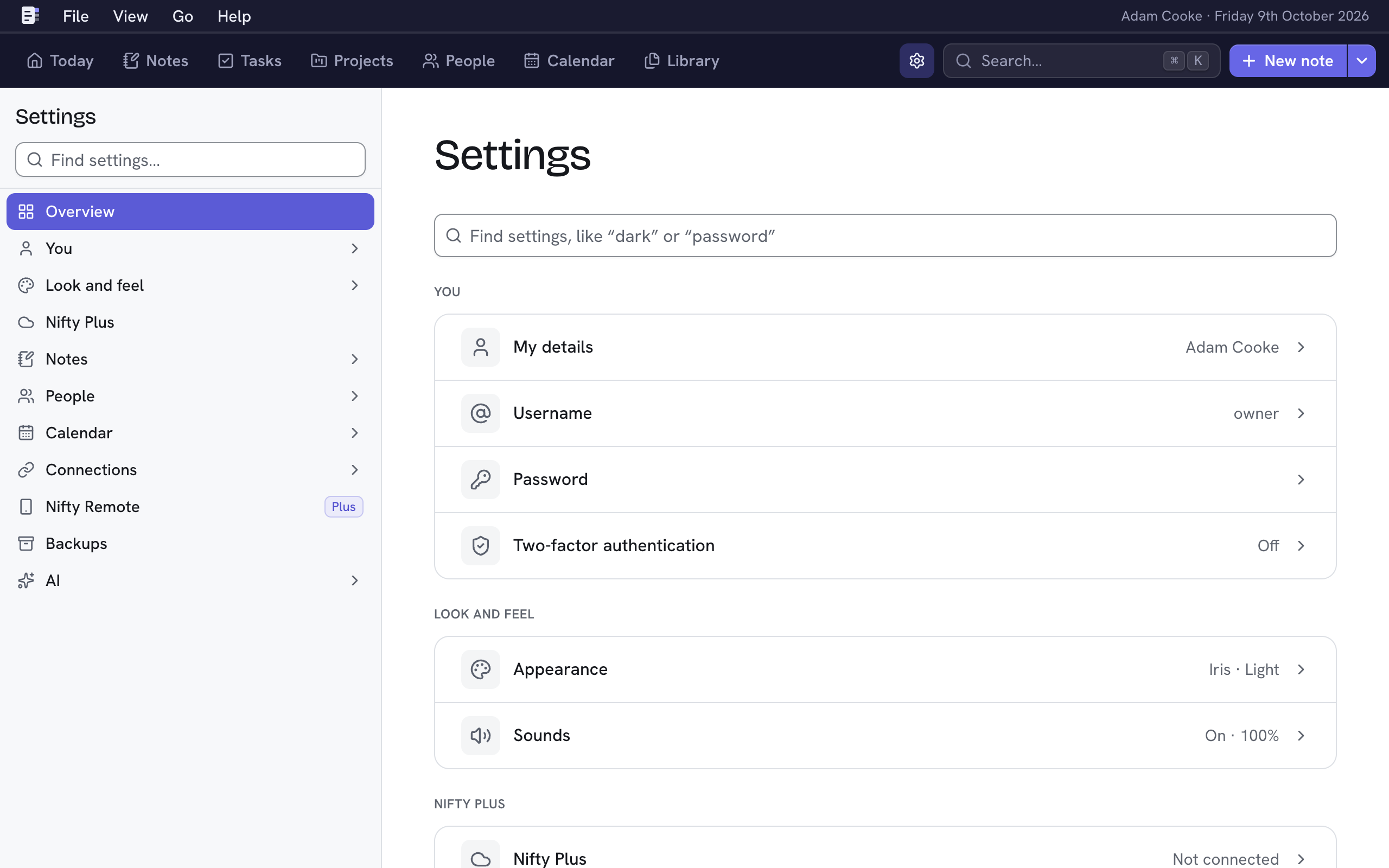
Settings lists its pages in groups, and each one shows what it holds, such as how many tags you have or which accent you chose. In the list on the left, choose a group to open it, then choose a page. One group is open at a time.
In the desktop app, the last item in the list, Desktop settings, opens the app's own settings: where your data lives, screenshots on a Mac, and updates.
Search settings
To find a setting, type in Find settings, at the top of Settings or above the list on the left. You can type a setting's name or a word for it, such as “dark”, “password” or “forward”. The results show as you type: the pages first, then the settings on them. Choose a result to go straight to it. Nifty marks the setting for a moment, so you can see where it is. To open the first result, press Enter.

| Group | Setting | For | More |
|---|---|---|---|
| You | My details | Your name and time zone, and the way to your own page | Your own page |
| You | Username | The username you sign in with | Below |
| You | Password | The password you sign in with | Below |
| You | Two-factor authentication | Asking for a code from an app when you sign in | Below |
| Look and feel | Appearance | Accent colour, light or dark, text size and code blocks | Below |
| Look and feel | Sounds | Sounds when you complete, add or delete something | Below |
| Nifty Plus | Nifty Plus | Connecting and managing your Nifty Plus subscription | Nifty Plus |
| Notes | Categories | Grouping notes by what they're about | Categories and pins |
| Notes | Tags | Renaming, merging or deleting tags | Mentions and tags |
| People | Companies | Renaming or deleting the companies people work at | Work |
| People | Fact labels | Naming, ordering and deleting what facts about people are about | Facts |
| Calendar | Calendars | Showing your other calendars in Nifty | Calendar |
| Calendar | Event type rules | Choosing the type of new events by your own rules | Calendar |
| Calendar | Tasks | Stopping the task you're working on at set times | Below |
| Connections | Email forwarding | Forwarding emails to your own Nifty address (Nifty Plus) | Nifty Plus |
| Connections | Send to Nifty API | Letting other apps send things to Nifty (Nifty Plus) | Send to Nifty API |
| Connections | API tokens | Letting apps and scripts use your data | Below |
| Connections | Webhooks | Telling another app when things change | Webhooks |
| Nifty Remote | Nifty Remote | Reaching Nifty from your other devices (Nifty Plus) | Remote |
| Data | Backups | Backing up now or daily, and restoring | Backups |
| AI | Providers and models | The providers and models AI uses | AI |
| AI | AI features | What AI does for you, such as titling notes | AI |
Update checks, beta releases and Send error reports are in Nifty → About Nifty. For more about them, see Updates and channels and Error reports and privacy.
Appearance

Choose an Accent colour (Iris, Coral, Jade, Saffron, Orchid or Steel) and a Theme. The theme can be Match device, Light or Dark. Text size makes the text everywhere Small, Medium or Large, and the layout stays the same. Code blocks in notes can follow the theme or stay light or dark.
Your choices apply on every device you sign in on, including the Mac app.
You can change these from anywhere with View → Theme, View → Text size and View → Accent. To make both the text and the layout bigger, zoom the window instead.
Sounds
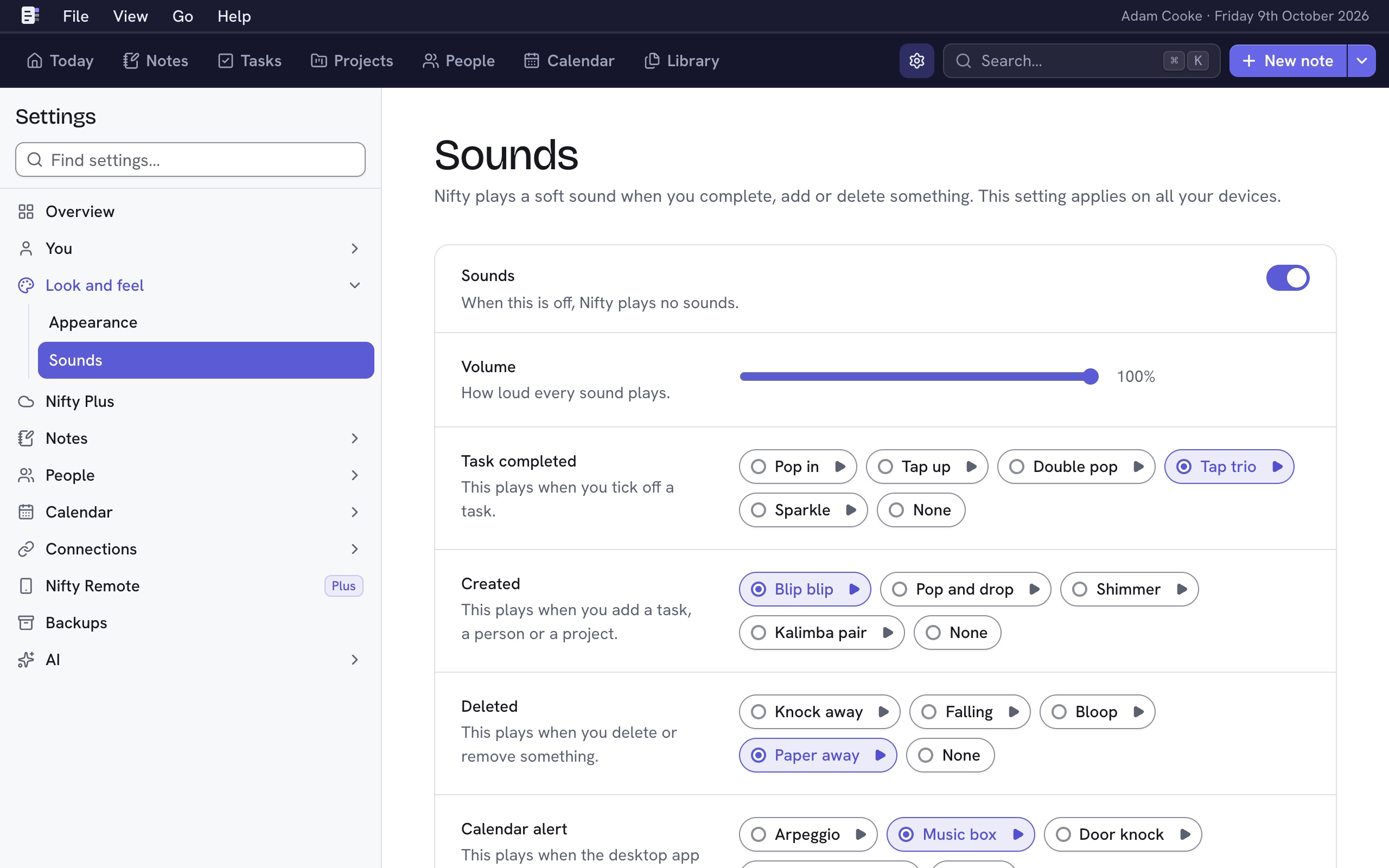
Nifty plays a soft sound when:
- Task completed: You tick off a task.
- Created: You add a task, a person or a project.
- Deleted: You delete or remove something, or revoke a token.
- Calendar alert: The desktop app alerts you to an event. See Alerts before events.
When you choose a sound, Nifty plays it and uses it from then on. Choose None for no sound. To hear a sound without choosing it, use its play button. Volume sets how loud every sound plays, and 100% is full volume. When you turn off Sounds, Nifty plays no sounds at all. Your choices apply on all your devices.
Tasks
While you're working on a task, a banner at the top of every page shows it until you stop it. See Work on a task now. Under Stop Now at, you can add times of day at which Nifty stops it for you, such as 18:00 for the end of your working day. Type a time and choose Add. To remove one, choose its ×. With no times, the task stays current until you stop it.
Username and password
Each has its own page in Settings.
- Username: Type the new Username and your Current password, then choose Change username.
- Password: Type your Current password, then type the New password twice and choose Change password. The new password needs at least 8 characters. Your other devices are signed out.
If you've forgotten your password, see Signing in and recovery.
When the Mac app keeps your data on your Mac, it has no Username, Password or Two-factor authentication settings. It signs you in each time it opens.
Two-factor authentication
Nifty can ask for a code from an authenticator app, such as 1Password or Google Authenticator, when you sign in on a new device (Sign in with a code). To turn it on, open Settings → Two-factor authentication and follow these steps.
- Under Authenticators, choose Add authenticator.
- Scan the QR code with your authenticator app. On a phone, choose Open in an authenticator app, or copy the key and type it into the app.
- Give it a Name, such as “iPhone”, so you can tell your authenticators apart.
- Type the Code from the app and your Current password.
- Choose Add authenticator.
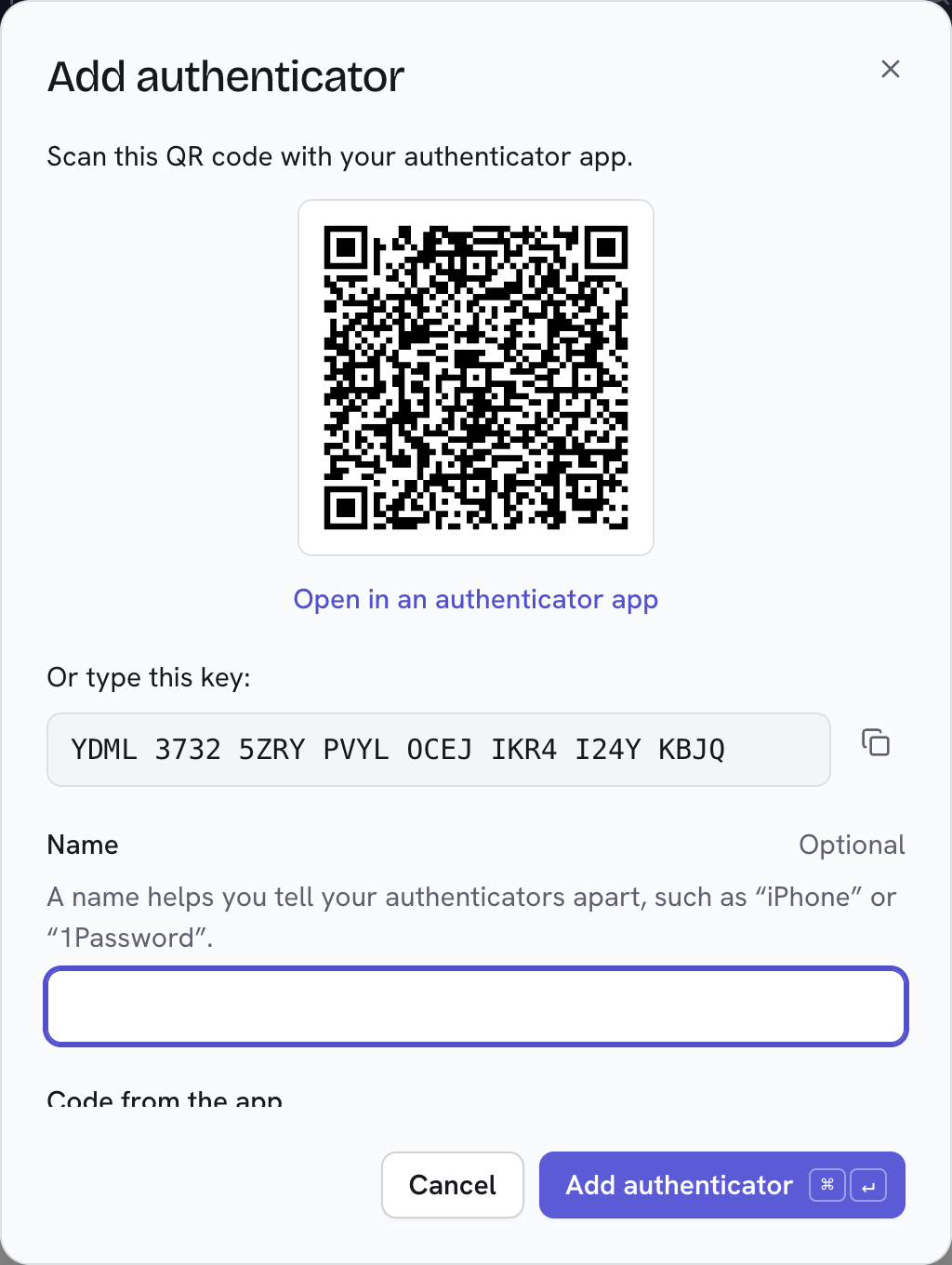
You can add as many authenticators as you like, such as one on your phone and one in a password manager. A code from any of them works when you sign in. To stop using one, choose its Remove button, type your Current password and choose Remove authenticator. When you remove the last one, two-factor authentication is turned off.
API tokens
A token lets an app or script use your data through the API. Keep each token as safe as a password.
- Choose New token (or press N).
- Give it a Name you'll recognise and choose its Access. A Full access token can view and change your data, and a Read only token can view it but can't change it.
- Choose when it Expires: Never, or in 30, 90 or 365 days.
- Choose Add token.
- Choose Copy token and keep it somewhere safe. You won't be able to see it again.
Each token shows when it was last used. To stop a token working, choose its bin icon and then Revoke token. Apps that use it stop working immediately.
To let Claude read your data, create a Read only token and follow Use with Claude.