Notes
Write things down, find them again and link them to people and projects.
On this page
Press ⇧N anywhere to start a note. A note saves as you type, so there's no Save button. When you've finished, choose Done at the top of the note's details, or press ⌘↵. To get to Notes, press G and then N.
Start a note
Any of these opens a blank note.
- Choose New note in the top bar, or press ⇧N.
- Choose the + at the top of the notes list.
- Choose File → New note.
- On a person or project, choose Add a note about… or press N. The note starts with them already mentioned.
- On a Mac, while Nifty is open and you're signed in, press ⌃⌥⌘N in any app. Nifty comes to the front with a new note open. To change or turn off the shortcut, choose Nifty → Desktop Settings…, and then Shortcuts.
A title is optional. A note without a title is shown by its first words. To learn more about writing, see Writing notes.
Read and edit a note
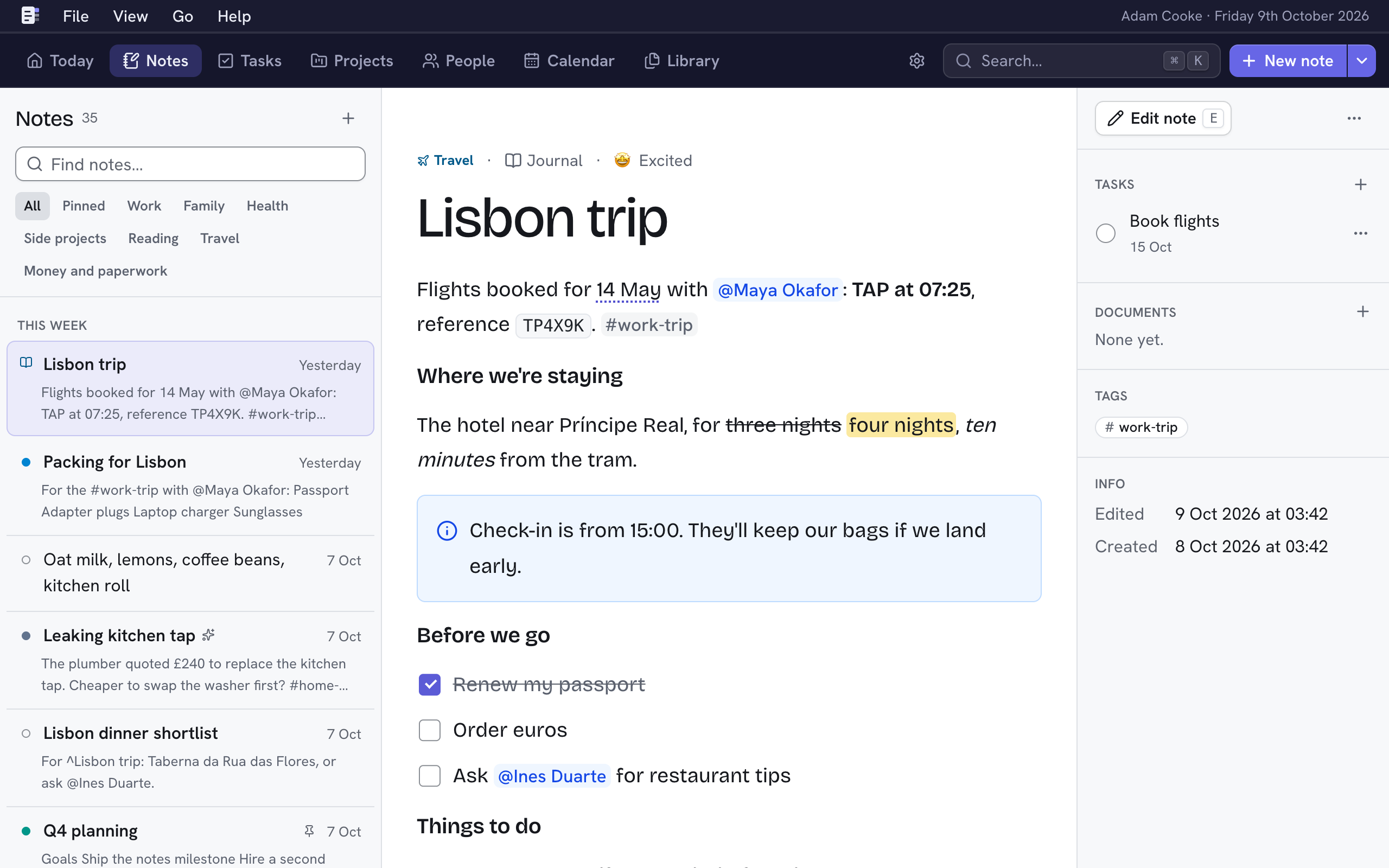
Choose a note in the list to read it. Its details are on the right, with its tasks, its linked documents, its tags and when it was made and edited.
Tick a task to complete it, or choose the + beside Tasks to add one that's attached to the note. Choose a document to view it over the page, or choose the + beside Documents to add more.
- Edit note (E) opens it in the editor where you were reading. If you're at the top of a long note, the cursor goes at the start. If you're at the bottom, or the note fits on the screen, it goes at the end. Otherwise, it goes at the start of the first paragraph that begins on screen.
- ⋯ → Link… (L) links documents, tasks and an event to the note. Type to find one, or choose Type or Day to narrow the list. Choose a result to link it, or one marked Linked to unlink it.
- You can select a note's title and text to copy them, as you would on a web page.
- You can tick a checklist item while reading the note. Choose its box, or press Space on it.
- J and K open the next and previous note in the list.
- [ hides or shows the list, and ] hides or shows the details. View → Wide text gives long notes more room. Nifty remembers it on every device you use.
Dates in a note
When you read a note, Nifty marks the dates in its text, such as "tomorrow", "next Friday", "3rd October", "in 3 days" or "a week ago". It works them out from the day the note was written, so "tomorrow" in an old note means the day after that note was written. Nifty doesn't mark dates while you edit a note, or in code or links.
A date without a year, such as "3rd October", means the nearest one to the day the note was written. "Friday" and "this Friday" mean the coming Friday, or that day if the note was written on a Friday. "Next Friday" always means the coming Friday, never that day.
Choose a date, or right-click it, to open a menu that shows the day it means. Choose Open in calendar to see that day, or Add event… to add an event on it. The new event isn't linked to the note, so choose ⋯ → Link event… if you want to link it.
Dates in a document's summary work the same way. See Details, summary and text.
Notes about a meeting
A note can be about one event from your calendar, such as a meeting.
- To take notes in a meeting, choose the event in Calendar, on Today or on a person's page, choose ⋯ and then choose Take notes. Nifty starts a new note with the event's title and links it to the event when it's saved. If the event already has notes, it lists them instead, and you can choose one to open it.
- To link a note you've already written, choose ⋯ → Link event… beside Edit note. Nifty lists the events on the day of the note, and typing finds events on that day. To look at another day, choose it under the search box. Choose an event to link it. For an event that repeats, the note is linked to that one occurrence.
- To link a note from its event, choose the event, choose ⋯ and then choose Link a note…. A note has one event, so linking it to another event moves it.
The note's event appears in its details on the right. Choose it to see the event, or choose × to unlink it. If the event is no longer in your calendar, the note keeps its title and date. The event's notes are listed when you choose the event in Calendar.
Print or share a note
Choose ⋯ → Download PDF beside Edit note, or choose File → Download PDF. You get a tidy A4 copy with the note's title, category, type and date in a dark band at the top, page numbers, its images and checklists, and links that still open. People and projects show by name, without @ or ^. Nifty leaves out the note's mood.
You can print it, or send it to someone after a meeting. Emoji print in colour. Non-Latin scripts, such as Greek or Japanese, print as boxes.
A long note can take a few seconds to make into a PDF, and Nifty shows a message while it works. A PDF holds the first 100 images you added to the note.
Find a note
Notes are listed newest first, by when you wrote them. Editing a note doesn't move it.
- Type in Find notes above the list. The best matches come first.
- Choose Pinned or a category under the search to see only those notes. All shows everything again.
- Choose a tag in a note to see every note with that tag.
- Choose the type above a note's title to see every note of that type.
- Press ⌘K to search notes, people, projects and more at once. See Search.
Delete a note
Choose ⋯ → Delete note… beside Edit note, or choose File → Delete note…. Then choose Delete note. You can undo this for 10 seconds. A note's images are deleted with it.
If you empty a note by mistake, choosing Done asks before it deletes the note, and you can still undo.