Today
Today shows what you're working on, what's due, your schedule and your projects, and its week tabs show what's coming.
On this page
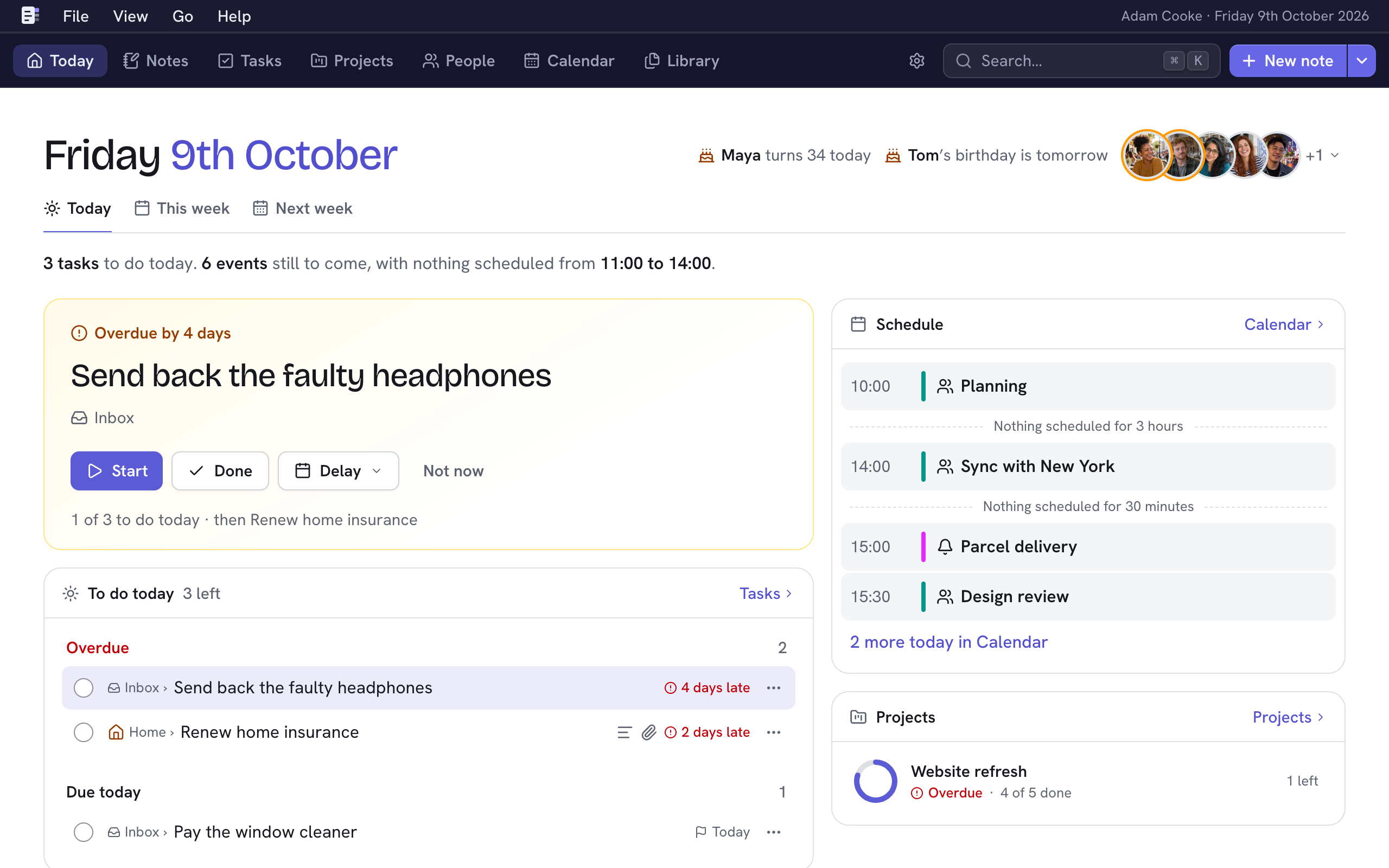
Today is where Nifty opens. It shows what you need to do today first, then the rest of your day. To come back from anywhere, press G and then H.
Getting started
When you first use Nifty, Today starts with a welcome. It has a card for each part of Nifty, each with a way to add your first person, task, note, calendar, project or document. A card is ticked once that part has something in it. The empty tiles below offer the same, such as New project in Projects.
To put the welcome away, choose ×. The message that appears has Undo. The welcome goes by itself once every part has something in it.
Until you add something, each part of Nifty, such as People or the Library, explains what it's for, with a button to add the first. Calendar offers to add a calendar or an event of your own. Choose Not now to hide that for good.
Your day in a sentence
Under the tabs, a sentence sums up your day, such as "4 tasks to do today, and 3 done. 6 events still to come, with nothing scheduled from 16:30 to 19:00." The time is the longest stretch of half an hour or more from now until 21:00 with no events in your calendars. It says "nothing scheduled" rather than "free", because Nifty only knows your calendars.
Add a task or a file
Press N on Today to add a task. It goes to your Inbox with no dates, so it shows on Today once you give it a start date or a deadline.
To file a PDF or an image for later, drop it anywhere on Today. It goes to Unsorted in the Library, and a message offers to Open it.
Birthdays and key dates
Beside the date, Today shows the faces of people with a birthday or another key date in the next 14 days, soonest first. A ring round a face means its date is within two days. The nearest of those are spelled out, such as "Maya turns 34 today". Hover over a face to see what's coming up and when.
Choose the faces to list every date, then choose one to open that person. Open People at the end opens People. When nobody has a date coming up, the date is on its own.
What you're working on
The big card at the top shows the task you're working on now, with when you started, its deadline and how often it's been put off. Under it, it says which task comes next. While a task is on the card, Today doesn't show the banner that other pages show for it. See Tasks.
| Choose | Does |
|---|---|
| Done | Completes it. |
| Stop | Stops working on it. |
| Delay | Moves its start to a day you choose. |
Where to start
When you aren't working on a task, the card suggests one: the first of today's tasks. If nothing is due today, it says so and suggests the first task under Also open.
| Choose | Does |
|---|---|
| Start | Starts working on it. |
| Done | Completes it and shows the next. |
| Delay | Moves its start to a day you choose. |
| Not now | Skips to the next task without changing anything. It appears only when another task is left. |
You can undo Done and Delay from the message that appears, or by pressing U. A delay past the task's deadline asks first, as it does in Tasks. To open the task, choose its title. When nothing is left, the card says There’s nothing left for today.
Today's tasks
To do today lists the tasks that are overdue, the most overdue first, then those due today. Tick a task to complete it, or choose its title to open it. Tasks at the top opens the full task lists.
Waiting on lists tasks you've delegated that are due today or overdue, with the person's photo. It only appears when there are some.
Also open holds every other task for today, folded. It says what's in it, such as "4 due soon, 3 under way and 3 not started". Choose Also open or Show to see them, in three groups:
| Group | Has |
|---|---|
| Due soon | Tasks due in the next 7 days. |
| Under way | Tasks whose start date has come, due later or with no deadline. |
| Not started | Tasks due later, with no start date. |
Nifty remembers whether Also open is open, on all your devices. In each group, the task due soonest comes first, then the one put off most often.
Schedule
Schedule shows the rest of your day from the calendars you show in Calendar, except any you've kept off Today. All-day events come first. Up to four events follow, starting with any that's on now, with how long there's nothing scheduled between them. An event that's on now says Now and is shaded in its calendar's colour. Choose an event to see its details, with Join for a meeting with a video call link. A link such as 3 more today in Calendar opens the rest. When no more events are left today, Schedule says "Nothing else is scheduled today."
On a phone, Schedule comes before your tasks if a meeting is on, or starts within 30 minutes, when you open Today or come back to it. It doesn't move while you're on the page.
Projects and notes
Projects shows your pinned projects and any that are overdue, the overdue first, each with how many tasks are done and left. To keep a project here, pin it. See Projects. Latest notes shows the notes you edited last.
This week and next week
Under the date, the This week and Next week tabs show what's coming. Press 1, 2 or 3 to switch between Today and the two weeks. Both weeks run from Monday to Sunday. On This week, the days before today are still there, so you can look back at what was on them.
Each day has a box along the top. Its bar shows the time your events take up between 07:00 and 21:00, and the number beside it is how many tasks are due that day. An icon marks a key date, such as a birthday, or a flag marks a project's deadline. A day with both shows the key date.
All-day events don't count. Ignored events, and events from calendars you've kept off Today and the weeks ahead or hidden from the Calendars menu, don't appear at all.
Choose a day to see everything on it. When its events have a gap of half an hour or more, a line between them says how long it is, such as "Nothing scheduled for 3 hours". Events show their calendar's colour as a bar beside them. Choose the day again, choose Close or press Esc to close it. Day opens that day in Calendar.
Below the days, your tasks are in three lists. On Next week, the lists say "next week".
| List | Shows |
|---|---|
| Due this week | Tasks with a deadline in the week that don't start in it. This week also shows overdue tasks first. |
| Starting this week | Tasks that start in the week, even if they're also due in it. |
| Things you're working on | Tasks with a start date before the week and a deadline after it. It only appears when there are some. |
A task that started before the week and has no deadline is on Today. Tasks you've delegated aren't listed.
Beside the tasks, Deadlines shows the projects due in the week, and on This week any that are overdue.
Events shows your meetings with other people that haven't finished yet, including one that's on now. It starts with the faces of the people you're meeting, up to 20, then how many more. The meetings that happen once come next, up to 6.
Meetings that repeat, such as a daily standup, aren't listed one by one. A link such as + 14 regular recurring events counts each time they happen and opens the week in Calendar. If no meetings happen once, the first 5 that repeat are listed instead, then a link such as + 9 more regular recurring events. A link such as 4 more events in Calendar counts the rest of the week's events.
The week's key dates are beside its title, as on Today. See Birthdays and key dates.