Projects
Keep track of what you're working on, who's involved and what happened.
On this page
A project gathers its notes, tasks, documents and people in one place, with a running record of what happened. To get to Projects, press G and then R.
Start a project
- Press ⇧R anywhere, or choose New project (N) in Projects.
- Type its name.
- Choose Add project, or press ⌘↵.
Its page opens. Under About, choose Add a description to say what the project is for and what done looks like.
Find a project
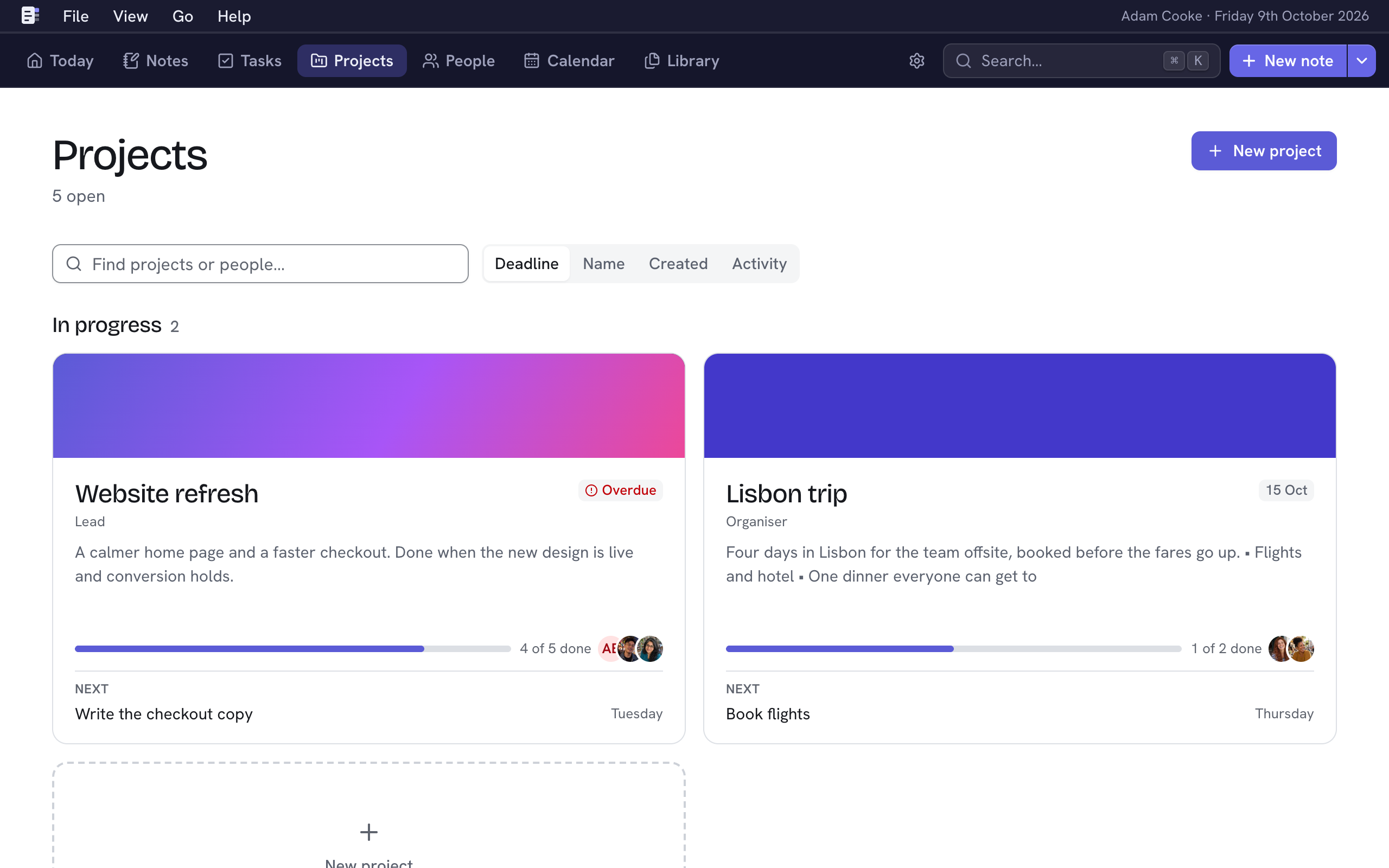
Projects are grouped by status.
- In progress shows active projects as cards, each with its progress and next task.
- Waiting lists planned and on-hold projects.
- Finished holds done and cancelled projects, folded away. Choose Finished to see them.
Type in Find projects or people (F) to match names, your role or the people on a project. ↵ opens the first match, and Esc clears it.
Beside Find projects or people, Order by sorts each group. Deadline, the default, puts the nearest deadline first, on-hold projects before planned ones and the most recently finished first. You can also sort by Name, by when each project was Created (newest first), or by its latest Activity (most recent first). Nifty remembers your choice on every device you use.
A project's page

The header shows the project's status, deadline, how many tasks are done and who's on it, with the tabs along its foot. Press 1 to 4 to switch tabs.
- Overview has two columns. The first holds About and Tasks, and Activity is beside them. On a phone,
Activity comes after them.
- About is the description. Choose the pencil beside it to change the description.
- Tasks shows the first eight open tasks, ordered and grouped as you chose on the Tasks tab. All tasks opens the Tasks tab.
- Activity shows what happened, newest first. It includes notes, tasks that were added, completed or removed, linked documents, and changes to the status, deadline and people. A task that's removed straight after it was added, or added back straight after it was removed, leaves no entry. Add a note about… starts a note that references the project.
- Notes lists the notes that reference the project. To add one, type ^ and its name in any note. See Mentions and tags.
- Tasks lists its tasks grouped as in Tasks: choose Deadline or Start to group them by either date, or Custom to put them in your own order. Beside them are the project's progress, the next two weeks with a dot on each day a task is due (or starts), and the tasks done most recently. New task (⇧T) adds one.
- Documents shows the documents linked to it, each with its first page. Choose one to view it, or its ⋯ for more. Right-click a document to open its menu where you clicked. To add more, choose Upload files or Link existing…, or drop files anywhere on the page. See Library.
A project's details
Choose Details in the header, or press ], to show the details beside the page. Nifty remembers whether they're shown on this device. On a phone they follow the page. Each section has a key, which works while the details are hidden too.
| Section | Key | Holds |
|---|---|---|
| Status | S | Where it stands, since when, and how many tasks are done. |
| Dates | D | Start date and Deadline, both optional. |
| People | A | Who's on it, each with an optional role. Add yourself (type me) with your own role, and it shows on the project's card. You're listed first, as You. |
| Details | A Reference (its ID elsewhere, such as JIRA-123) and a Link. |
Status
Choose the status badge (S) and choose a status. It saves immediately.
| Status | Shows under |
|---|---|
| Planned | Waiting |
| Active | In progress |
| On hold | Waiting |
| Done | Finished |
| Cancelled | Finished |
Cover
A cover gives a project its own look on its page and its card in Projects. A new project starts with a colour that few of your other projects have. To change it, choose Change cover in the header.
- Colours offers 16 gradients and 16 solid colours. Each has a deeper version in dark mode.
- Photo uses a photo of your own. Choose Choose a photo…, or drop an image on the panel: a JPEG, PNG, WebP or GIF of up to 20 MB. Under Framing, choose which part of the photo shows. Replace photo… swaps it for another.
- Unsplash finds a photo on Unsplash, with Nifty Plus. Type what you're after, such as "kitchen", press Enter and choose a photo. Nifty downloads and keeps a copy, then closes the panel, and the header credits the photographer. This tab only shows while Nifty Plus is connected.
A choice saves straight away, so you can try a few. Choose Done or press Esc when you're happy. Every project keeps a cover, so to stop using a photo, choose a colour instead. A photo you replace is deleted, and so is a project's photo when the project is deleted for good.
Deadlines
An open project's deadline reads "Due Friday", "Due in 12 days" or "Overdue". An overdue project appears in Today's Projects tile, and deadlines and start dates appear in the Calendar.
People on a project
- Choose + beside People, or press A.
- Choose a person and, if you like, type their Role.
- Choose Add person, or press ⌘↵.
To change someone's role, choose the pencil beside them. To take them off the project, choose Remove from project. They stay in People.
Pin a project
To keep a project close at hand, press P on its page, or choose the pin icon, Pin project, in its details. It then shows in Today's Projects tile. To go to it, hover over Projects in the toolbar, or focus Projects and press ↓. You can unpin a project in the same way.
Change or delete a project
- Edit project (E) renames it.
- The bin icon in its details, Delete project, deletes it along with its description and tasks. Its people stay, and references to it in notes become plain text. You can undo this for 10 seconds with U.