Calendar
Calendar shows your day or week, with your calendars and your own events beside Nifty's tasks, projects and key dates.
On this page
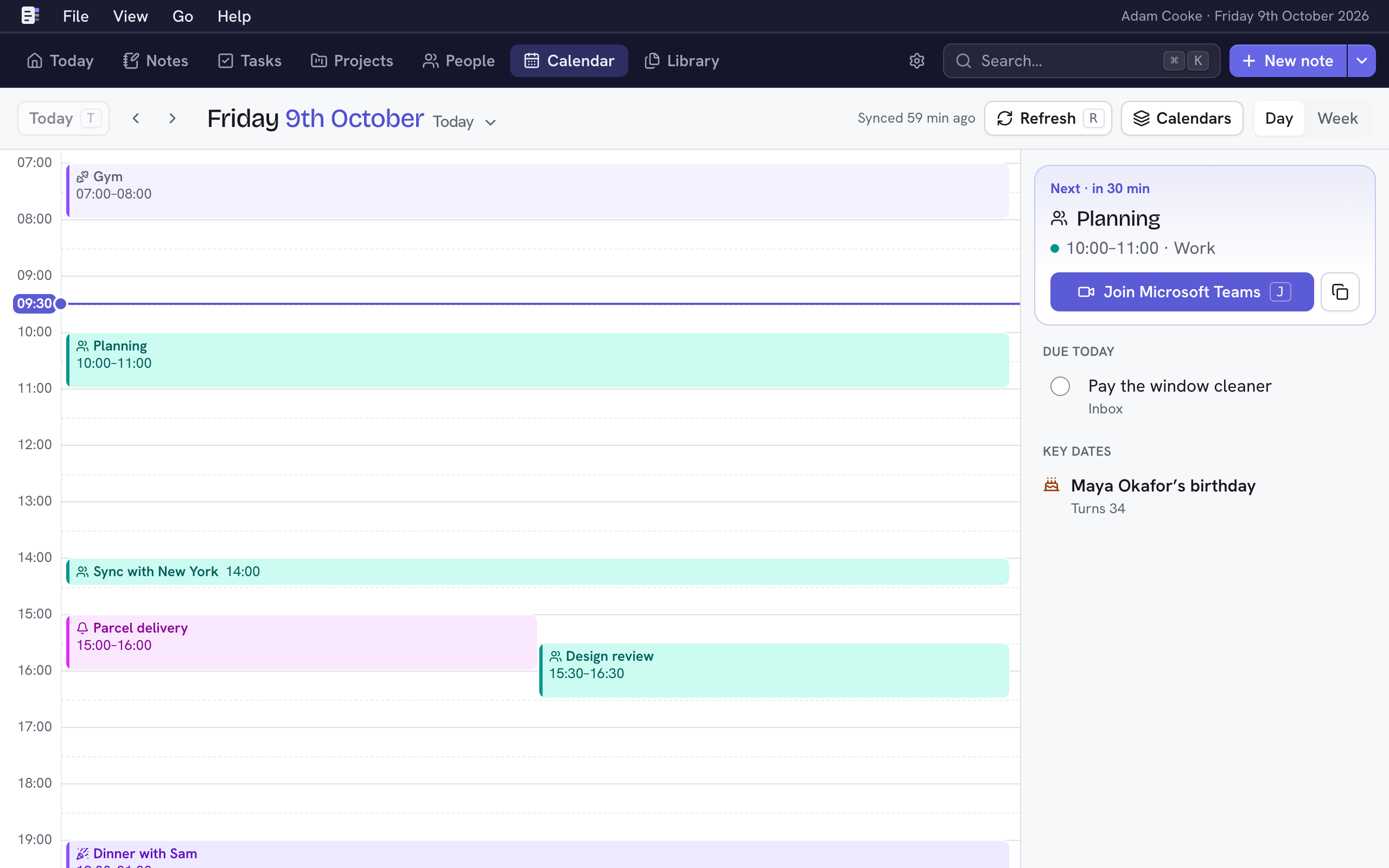
Calendar shows a day or a week. It includes events from the calendars you add, your own events on My Nifty Calendar, and Nifty's own dates, which are tasks due, project deadlines and key dates. To open it from anywhere, press G and then C. It opens in the view you chose last, Day or Week.
Nifty only reads the calendars you add. It never changes them.
Add your own events
My Nifty Calendar is built in, and it holds the events you create in Nifty. Each event is on one day, and it lasts all day or has a start and end time.
- Press ⇧E from anywhere, or N in Calendar. You can also choose an empty time in Day or Week, or Week's all-day row, to start an event there.
- Type a title, and then choose its date (or type one) and time, or All day. You can also add a place and notes.
- Choose Add event, or press ⌘↵.
To change an event, choose it, choose ⋯ and then choose Edit…. Delete event, also in ⋯, removes it, and the message that appears has Undo. To change the calendar's colour, or to keep its events off Today, This week and Next week, choose Edit (the pencil) beside My Nifty Calendar in Settings → Calendars.
Choose an event type
Open an event and choose the icon before its title. An untyped event shows a dashed square there. Choose a type, such as Meeting, Appointment, Reminder or Social, or choose No type. You can also choose a type when you add or edit your own event.
The type’s icon appears before the event’s title in Calendar, on Today, on a person’s Upcoming meetings tab and in a note’s Event section.
When an event is added, Nifty first tries your own rules. If none of them matches, it tries to assign a type from its title and guests, without AI. If the meaning is unclear, it leaves the event untyped. You can choose a different type or No type at any time. To keep a new event untyped, choose No type before you save it.
The saved type stays the same when the title, guests or contacts change. For a repeating event from a calendar you added, your choice applies to every occurrence. These choices stay in Nifty and do not change the source calendar.
Set types with your own rules
A rule gives a type to the events that match it, such as Meeting for every event whose name contains “standup”. Your rules come before Nifty's own. The first rule that matches decides the type.
- Open Settings → Event type rules and choose New rule (N).
- Type the text for Name contains.
- To look at something else as well, choose Add condition and choose a condition. An event must match all of them.
- Under Set the type to, choose a type. Choose No type to keep Nifty from giving these events a type.
- Choose Add rule, or press ⌘↵.
A rule can look at these things:
| Condition | Matches an event when |
|---|---|
| Name contains | its name contains the text anywhere |
| Name is | its whole name is the text |
| Location contains | its location contains the text |
| Attendee email contains | a guest's email address contains the text, such as @example.com |
| Number of attendees | at least, at most or exactly that many people take part, counting the organizer and leaving out rooms |
| Starts between | it starts at or after the first time and before the second. The times can run past midnight. All-day events never match. |
| Calendar is | it's on that calendar |
Capitals and accents don't matter when Nifty compares text. While you edit a rule, Nifty shows how many events without a type it matches. When you save the rule, Nifty applies it to those events, past ones included.
Nifty never changes a type that's already set, or one you set to No type. Deleting a rule keeps the types it gave. Removing a calendar also deletes the rules that use it.
To change the order of your rules, drag one, or press ⌥↑ or ⌥↓ on one. To change or delete a rule, choose Edit (the pencil) or Delete (the bin) beside it.
Add a calendar
Nifty reads any calendar that has an iCal (.ics) address, such as Google Calendar, Outlook and iCloud.
- Open Settings → Calendars and choose New calendar (N).
- Paste the Calendar address. If you're not sure where to find it, see Find a calendar's address.
- You can give it a Name and a Colour. If you leave the name blank, Nifty uses the calendar's own.
- Choose how often to Check for changes every, from 15 minutes to daily.
- Choose Add calendar, or press ⌘↵. Nifty checks the address and then shows its events.
A calendar's address works like a password, because anyone who has it can read your events. Nifty keeps it secret, and once it's saved, Nifty shows only its host.
To change, sync or remove a calendar, choose Edit (the pencil), Sync now (the circling arrows) or Remove (the bin) beside it. Removing a calendar takes its events out of Nifty. The calendar itself isn't changed.
Get around
| Key | Does |
|---|---|
| 1 · 2 | Day or Week |
| ← · → | Previous or next day or week |
| T | Back to Today |
| D | Choose a day from the month (or choose the date at the top) |
| R | Refresh: check every calendar for changes now |
| J | Join the meeting that's on now or next |
Day shows the hours, and beside them the day's all-day events, tasks due, project dates and key dates. You can tick a task there to complete it. Week shows seven days, and you can choose a day's heading to open it. On a phone, Week is a list.
Events and meetings
Choose an event to see its time, place, guests and description. If it has a video call link, such as Zoom, Google Meet or Microsoft Teams, Join opens the call, and the copy button copies the link. The same details open from Today's Schedule and a person's Upcoming meetings, without leaving the page. Press Esc to close them.
The details also list the notes about the event. To start one, choose ⋯ and then Take notes. To link a note you've already written, choose ⋯ and then Link a note…. See Notes about a meeting.
Right-click an event to open its menu where you clicked. It starts with Open, which shows the event's details, and then has the choices under ⋯. In this menu, Take notes opens the event's note if it already has one, or shows the details if it has several.
This works in Calendar, in Today's Schedule, on a person's Upcoming meetings tab and in a note's Event section.
For today, the card at the top of Day shows the meeting that's on now, or the next one within the hour, with Join (J). Today's Schedule shows it too. See Today.
Ignore events
To keep an event in Calendar without it getting in your way, choose the event, choose ⋯ and then choose Ignore event. For an event that repeats, choose Ignore every repeat to ignore all of them at once.
An ignored event stays in Calendar, with a dashed outline and no colour fill, so you can still see the time is taken. It doesn't appear anywhere else: not on Today, not in alerts and not in people's meetings. To stop ignoring it, choose the event, choose ⋯ and then choose Stop ignoring.
Hide events
- One event from a calendar you added: Choose the event, choose ⋯ and then choose Hide event. It no longer appears in Calendar, on Today, in alerts or in people's meetings, and it stays hidden when the calendar syncs. If you change your mind, choose Undo on the message straight away. After that, the event is hidden for good.
- A whole calendar, off Today and the weeks ahead: To keep a calendar's events off Today, This week and Next week but still see them in Calendar, choose Edit (the pencil) beside it in Settings → Calendars. Set On Today and the weeks ahead to Hidden.
Alerts before events
The desktop app can alert you before a calendar's events start, on a Mac or a Windows PC.
- Open Settings → Calendars and choose Edit (the pencil) beside a calendar.
- Under Desktop alerts, choose As events start, or 1 to 10 minutes before.
- Choose Save.
While the desktop app is open, even behind other windows, a notification names each event and when it starts, and your Calendar alert sound plays. Choose the notification to join the event's video call, or to open Calendar if the event has no call. All-day events don't have alerts, and Nifty in a browser doesn't show alerts.
The first time, your Mac asks whether Nifty may send notifications. Choose Allow. To change this later, open System Settings → Notifications → Nifty.
Guests who are your people
A guest who's one of your people appears with their photo, and choosing them opens their page. Nifty matches a guest by an email address under their Details, or by name when only one person has that name. Their page then shows their next meeting under their name, which you can choose to see its details, and an Upcoming meetings tab for the next 60 days.
If a guest isn't matched, add the email address they use for invitations to their Details.
Show or hide calendars
Choose Calendars at the top to tick which calendars to show. You can also choose which of Nifty's own dates to show: Task deadlines, Project dates and Key dates. Your choice applies on every device you use.
When a calendar won't sync
The status at the top, such as "Synced 5 min ago", says when Nifty last checked. If a calendar fails to sync, a warning there names it and links to Settings → Calendars, which says what went wrong. If the calendar's address has changed, choose Change address… there and paste the new one.