Search
Press ⌘K to find anything, go anywhere or start something new.
On this page
Press ⌘K (CtrlK on Windows and Linux) or /, type a few letters and press ↵. You can also choose Search… at the top of the window.
What it finds
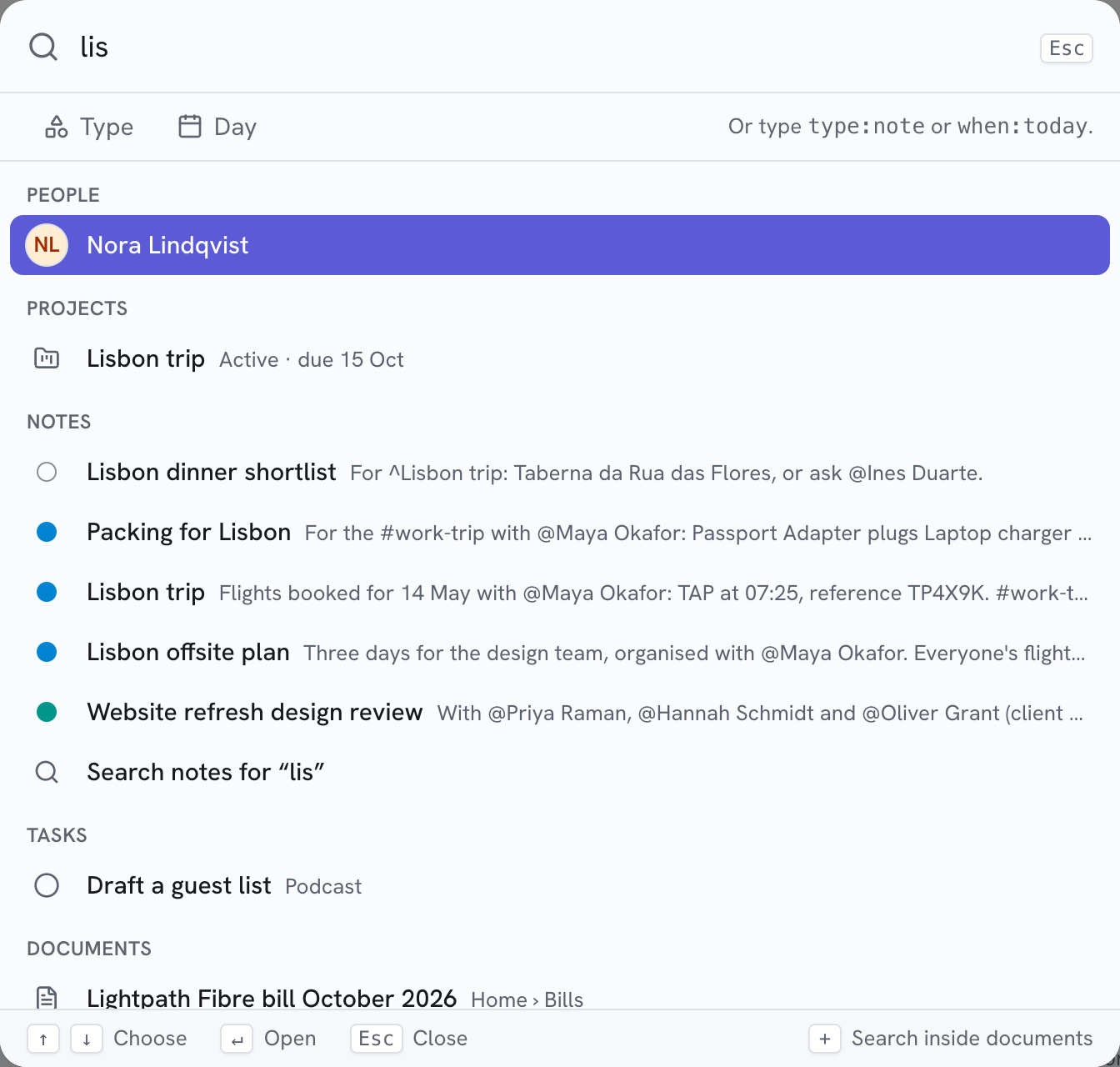
Results come in groups, with the best matches first.
| Group | Finds |
|---|---|
| People | Names and contact details |
| Projects | Names, references and descriptions |
| Notes | Titles, tags, categories and text |
| Tasks | Titles |
| Events | Titles and places, from a week before today to a week after |
| Documents | Names |
| Go to | Areas, settings, task lists and folders |
| Actions | New note, person, project, task or list; Nifty help; Keyboard shortcuts |
Type the start of any word. For example, lis finds "Lisbon trip". Accents and capitals don't matter, so jose
finds José, and searches for names allow for a typo.
Narrow a search
Under the search box, choose Type to find only one kind of thing, or Day to find only what's on one day. You
can also type them. For example, type:note lisbon finds notes about Lisbon, and when:today lists today's notes,
tasks, events and documents.
| Filter | Followed by |
|---|---|
type: |
note, person, project, task, event or document, or their plurals |
when: |
today, tomorrow, yesterday or a date such as 2026-10-19 |
A day means the day a note was written, a task's deadline or start, an event's day or a document's date. People and projects don't have a day. To find an event more than a week away, choose its day.
Move around
- ↑ and ↓ move through the results, across groups.
- ↵ opens the chosen result. A task or document opens over the page you're on, so closing it takes you back to where you were.
- Esc closes search. Press ⌘K again to select what you typed.
Search from any app on a Mac
While Nifty is open and you're signed in, press ⌃⌥⌘K in any app. Nifty comes to the front with search open, so you can find something and open it straight away.
To change the shortcut:
- Choose Nifty → Desktop Settings…, and then Shortcuts.
- Next to Search shortcut, choose Change… (or Record shortcut if it's off).
- Press the keys you'd like. They must include ⌘, ⌃ or ⌥, unless you use a function key (F1 to F20).
To stop using the shortcut, choose Turn off.
Start something from what you typed
The actions use your words. For example, type Call the plumber and then choose New task “Call the
plumber”. The task opens with your words filled in, ready to save.
Search inside notes
Under the note results, choose Search notes for “…” to see every matching note in Notes.
Search inside documents
To search the text of your documents, images included, and their summaries instead, start
with +. For example,
+ amount due finds every document that mentions an amount due. Each result shows the words around the match.
Type a place's name to go there. For example, tok goes to API tokens, and logbook goes to the Tasks Logbook.