Library
Keep your PDFs, images and emails in folders, link them to the people, projects and notes they belong to, and attach them to tasks.
On this page
The Library holds your documents: PDFs, such as bills, contracts, letters and scans, images, such as screenshots and photos, and emails you've added. You can browse them in folders and link each one to whatever it's about. To get to the Library, press G and then L.
Upload files
- Choose Upload files, or press ⇧U anywhere, and choose the files.
- Drag files onto the Library. To put them in a particular place, drop them on a folder or a crumb in the path at the top. Anywhere else, they go to the folder you have open.
- To add a screenshot you've copied, press ⌘V (CtrlV on Windows and Linux) in the Library. It goes to the folder you have open, named for when you pasted it.
New files without a folder go to Unsorted. Each file can be up to 50 MB. You can keep working while they upload.
To upload and link files in one go, drop them anywhere on a person's or project's page, or on a note as you write it. A new note needs some words first.
Add images
You can add PNG, JPEG and WebP images, such as screenshots and photos of letters, receipts or labels. Nifty reads the text in each image, so you can search for it and summarise it as you would a PDF.
- An image must be at least 200 × 200 pixels. Smaller ones, such as icons, aren't added.
- Photos from an iPhone are often HEIC files. iPhones, Safari and the Mac app turn them into JPEGs as you add them. Other browsers can't read HEIC, so export the photo as a JPEG first.
- A photo shows the right way up, whichever way you held the camera.
Take screenshots on a Mac
The Mac app can take a screenshot from any app and keep it in the Library. Press ⇧⌘6, then drag across the part of the screen you want. Press Space to take a whole window instead, or Esc to cancel.
The screenshot goes to Unsorted, named for when you took it, and a Quick sort window opens over your other apps. It shows the screenshot and where it is. Type a new name, then choose a folder from the list, or choose Links to link the screenshot to a person, project, note or task. Each folder or link is saved as you choose it. Choose Done to save the name and go back to what you were doing.
To change what happens, open Nifty › Desktop Settings… and choose Screenshots:
| Setting | What it does |
|---|---|
| Shortcut | Choose Change… and press the keys you'd like. They must include ⌘, ⌃ or ⌥, unless you use a function key (F1 to F20). Choose Turn off to stop taking screenshots. |
| Send it to | Choose one or more: Library adds each screenshot to Unsorted, Clipboard lets you paste it into another app, and A file saves it as a PNG in a folder (the Desktop, unless you choose Change…). |
| Afterwards | Opens Quick sort, shows the screenshot in Nifty, or does nothing. |
The first time, macOS asks whether Nifty may record your screen. If a screenshot shows only your desktop picture, allow Nifty in System Settings › Privacy & Security › Screen & System Audio Recording, then try again.
If Nifty can't add a screenshot, a notification says why. Nifty needs to be open and signed in to add one.
Add emails
You can add an email to the Library as you would a PDF. Save it from your mail app as an .eml file, then drag it onto the Library,
a person's or project's page, a note or a task, or choose it with Upload files.
- Apple Mail: Drag the email from the message list to the desktop.
- Gmail: Open the email, and then choose ⋮ → Download message.
- Outlook: Save the email as an
.emlfile where Outlook offers it, as the new Outlook and Outlook on the web do. Classic Outlook's.msgfiles can't be added.
An email goes where you drop it, like a PDF: Unsorted unless you drop it on a folder. Each email can be up to 50 MB. With Nifty Plus, you can forward emails to Nifty instead. See Forward emails to Nifty.
- Its PDFs come with it, inside the email. View the email to see them listed with it. They go wherever the email goes, so you move the email, not them. You can rename, link or delete each one.
- Other attachments, such as photos or spreadsheets, aren't kept. The email lists them, so you know to find them in your mail app.
- A forwarded email is added as the original it forwards, with its sender, date, subject and attachments. Your note when you forwarded it shows above it. This works for forwards from Gmail, Apple Mail and Outlook, and for emails forwarded as attachments.
- People you know show with their photo, matched by their email address. Choose one to go to their page.
- An email with only attachments, one with no subject or nothing more to say than "Please find attached", adds its PDFs as ordinary documents instead. Each one remembers who sent it and when.
If you add the same email again, Nifty opens the one you already have rather than adding a copy.
Browse
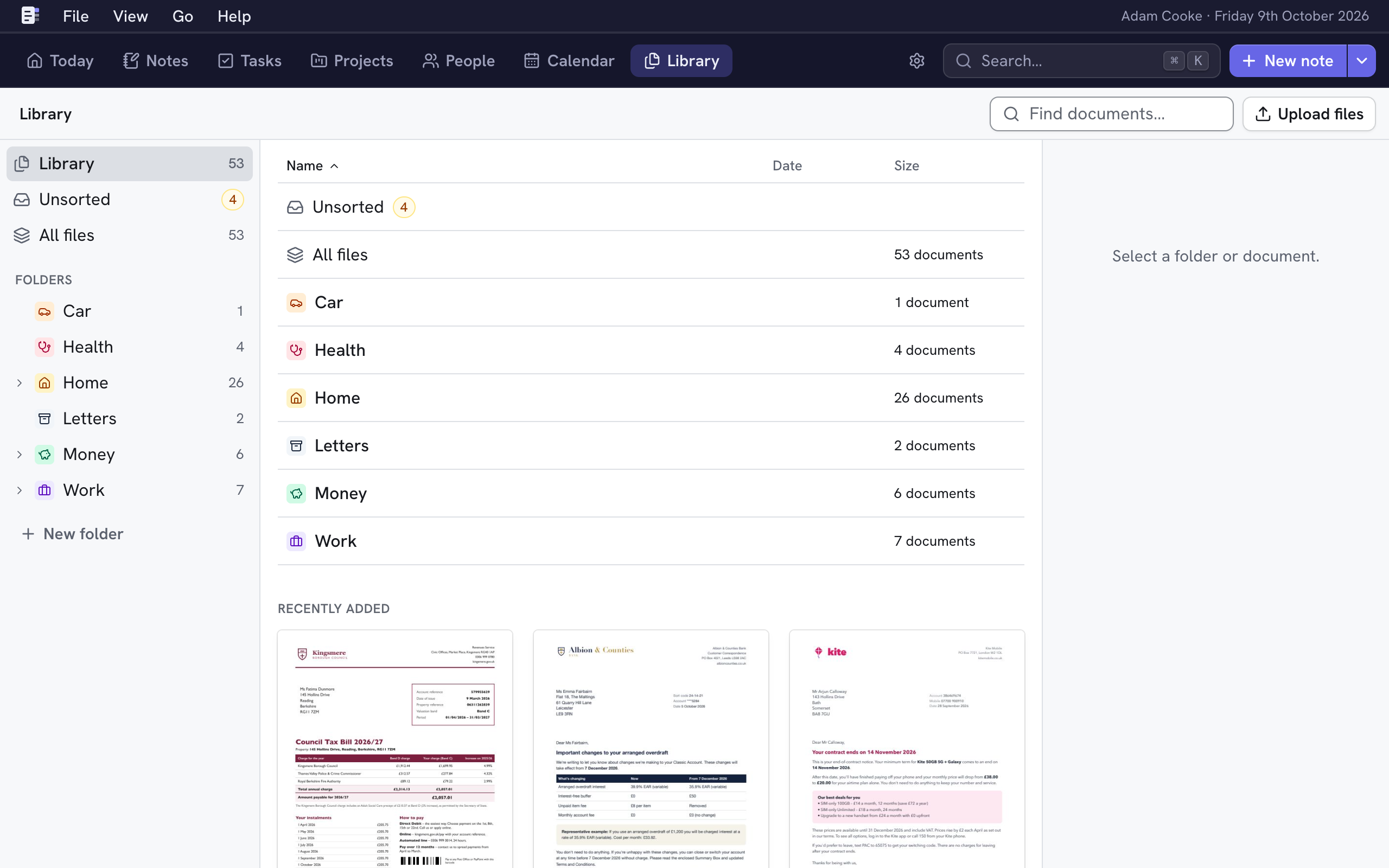
The folder tree is on the left, and the open folder's contents are in a table in the middle. The preview of what you've selected is on the right.
- Choose a folder in the tree to open it. Its arrow shows or hides the folders inside it.
- Drag the edge of the folder tree or the preview to make it wider or narrower. Nifty remembers the width on this device.
- In the table, select a folder or document to preview it. Double-click it, or press ↵, to open it. ← goes up to the folder above.
- Right-click a document or a folder in the table, or a folder in the tree, to open its menu where you clicked. A document's menu has Open, Rename…, Move… (not for a PDF inside an email), Link…, Download and Delete document…. A folder's has Open, Edit folder…, Move… and Delete folder….
- If you've selected several documents, right-click one of them to move, link or delete them all.
- Choose Name, Date or Size at the top of the table to sort by it. Choose it again to reverse the order. Folders always come first. Nifty remembers the order you choose in each folder, in Unsorted, in All files and at the top level, on every device you use.
- Date is the document's date, not when you added it.
- The preview shows a small picture of the document with View, Move, Link, Download and ⋯. Under Details you can change its date, choose its folder to move it, and add or remove links. A short summary and the people it names come after.
- Find (F) narrows the table by name. In a folder, it finds documents in the folders inside it too, and shows which folder each one is in.
- All files, under Unsorted, lists every document in the Library, wherever it is, with the folder each one is in. Documents in Unsorted have no folder. You can sort it and use Find in it, as in a folder.
The Library opens on Unsorted, All files, your folders and the documents you added most recently. Each recent document has a ⋯ menu, which a right-click also opens. The tree is hidden in a narrower window, so use the path at the top to go back up.
On a phone or in a narrow window
The Library shows one folder at a time, with no tree or preview. Each row shows a document's date and size, or how many documents a folder holds.
- Choose a folder to open it, or a document to view it. The back arrow or the path at the top takes you up a level.
- To find a document, type in the box under the path.
- To sort, choose ⋯ at the top and then Name, Date or Size, and the order you want.
- In Unsorted, choose Move… beside a document to file it. To link, rename or delete a document, view it first.
Sort Unsorted
Unsorted holds documents that have no folder and no links. Select one, and then choose one of these.
- Move (M) puts it in a folder.
- Link (L) links it to a person, project, note or task.
Unsorted groups documents by when you added them, the newest group first. Choose Move… beside a document to pick its folder. Once it's filed, the row shows its folder until you leave Unsorted. Choose the folder to move it again.

The document leaves Unsorted the next time you open it.
Document dates
Each document has a date: when it was written, sent or received. The Library sorts by it, and its rows and cards show it. Nifty chooses it for you:
- An email, and each PDF that came with one, is dated the day the email was sent.
- With Document summaries on, a document is dated the day it says it was issued, if it says.
- Otherwise, it's the day you added it.
To change it, choose the date in the document's Details, in the preview or the viewer, and then choose a day or type a date such as 4 Oct 2022. Nifty keeps the date you choose. To hand it back, choose the date again and then Let Nifty choose.
View a document
Select a document and choose View, or press Space. The viewer shows the PDF or image with its name and these buttons.
| Choose | Key | Does |
|---|---|---|
| The arrows | ← → | The previous or next document in its folder. |
| Move | M | Moves it to another folder. |
| Link | L | Links it to things. |
| Download | ⌘S | Downloads the file. |
| ⋯ → Rename… | E | Renames it. You can also choose its name. |
| ⋯ → Summarise again | Asks AI for a fresh summary (with Document summaries on). | |
| ⋯ → Delete… | Deletes it. |
Space or Esc closes the viewer.
An image fits the viewer. To see it closer, choose Zoom in, or choose Fit to see it at its own size. Choose the size again, or double-click the image, to fit it once more.
An email's message fills the viewer. Its Details tab shows who it's from and to, when it was sent and its PDFs.
Choose a PDF to view it. A PDF from an email has an Email section in its Details: choose the email to go back
to it. Download email downloads the .eml file.
Pictures in an email that come from the web are hidden until you choose Show images, so the sender can't tell you've opened it. Nothing in an email can run in Nifty, and its links open in your browser.
A linked document anywhere else, such as in a person's, project's or note's documents, a task or a project's activity, opens in the same viewer over the page you're on. Esc or Back returns you to the page.
Details, summary and text
Beside the PDF or image, or below it on a phone, the viewer has three tabs. Use ← and → to move between them once one is selected.
- Details: Its date, folder and links, which you can change there, then who sent it (for an email) and when you added it. The people it names and the start of its summary come after.
- Summary: When Document summaries is on, AI writes a short summary. It also gives the kind of document, such as a bill, a payslip or a statement, its key facts, such as who it's from, dates and amounts, and the details for that kind of document, such as a bill's meter readings. When Image processing is on, it says what an image shows. Last comes what a PDF says about itself, such as its title, author and when it was made.
- Text: The text Nifty read from a PDF or image, as search and summaries use it. Choose Copy the text to copy it. Where Image processing read an image, you can switch between the model's reading and Nifty's own. An email has no Text tab: its message is the text.
Choose a date in a summary, its key facts or its details to see that day in your calendar or add an event on it. Nifty works out dates such as "tomorrow" from the document's date.
If you quit Nifty while AI is writing a summary, Nifty stops it and starts again the next time it opens.
A PDF with no text in it, such as a scan, can't be summarised yet, and nor can an image without words. To find a
document by what's in it, start a search with + (Search).
Folders
- To add a folder, choose New folder (N). Give it a Name, and choose where it goes (In), a Colour and an Icon. Folders can hold other folders.
- Select a folder to see Upload here, New folder, Edit (E), Move (M) and Delete. Only an empty folder can be deleted.
Move documents
Choose Move (M), and then choose a folder or type part of its path. For example, "pay 26" finds Payslips › 2026. Press ↵ to move it. No folder takes the document out of its folder, and New folder… makes a folder and moves the document there.
You can also drag a document onto a folder or a crumb. You can undo every move for 10 seconds with U.
Link documents
A linked document appears on the page of each thing it's linked to. Linking doesn't move the document.
- Choose Link (L).
- Type to find a person, project, note or task, or choose Type or Day to narrow the list. See Narrow a search.
- Choose a result to link it, or choose one marked Linked to unlink it. Each change is saved immediately, and what's linked is listed at the top.
- Press Esc when you've finished, or choose Done on a phone.
On a person's or project's Documents tab, Link existing… finds a document to link there in the same way, and Upload files adds new ones that are already linked. A note's documents are in its details, under Add documents.
To attach a document to a task, choose Link and find the task, or open the task and choose ⋯ → Attach…. A document's tasks are in its details, under Tasks. See Notes and documents on a task.
People a document names
When Nifty reads a document's text, it looks for the people you know. A document names someone when it holds their full name, such as "Grace Hopper", or one of their email addresses. A first name on its own isn't enough, because it could be anyone. Nifty never suggests you, or anyone the document is already linked to. An email and its PDFs are read together, and the people they name show on the email. Its sender and recipients count too. This needs no AI, and nothing about it leaves Nifty.
They appear under Suggestions, below the document's details in the Library's preview and on the viewer's Details tab. Each card shows the person's name and the email address the document holds, or Named in the text.
- Choose Link person to link the document to them straight away. You can unlink them later in the document's links.
- Choose Dismiss to dismiss it for good. The message that appears has Undo.
Linking a document to someone in any other way accepts their suggestion too. When you add someone, rename them or give them a new email address, Nifty looks through your documents for them again.
Work on several at once
Select several documents with ⌘-click, ⇧-click or ⌘A, and then choose Move, Link or Delete in the preview. Esc goes back to one document.
Delete a document
Select the document and press ⌫, or choose ⋯ → Delete…. Anything it's linked to stays. You can undo this for 10 seconds with U.
Thumbnails
Nifty makes a picture of each PDF's first page for the overview, the folder tiles and the preview. A new upload shows a plain page for a moment until its picture is ready. An image is its own picture.